
On this page
Short answer: Facebook Ads flags a campaign as Misleading Link when the browser sends the offer page URL in the Referer header of Meta Pixel requests. On HidePages, put <meta name="referrer" content="no-referrer"> as the first line of Scripts → Head (builder pages) or in your page's <head> (Mirror and Redirect), before the Pixel code.
If you run the Meta Pixel on an offer page in HidePages, set the browser so it does not send that page's URL as the referrer on Pixel requests. You do this in the page code. No server or hosting setup is required.
Pages served by HidePages (builder and Mirror) already ship with Referrer-Policy: strict-origin-when-cross-origin: a request to another site carries only the domain, without the path or query string. The meta tag below drops the Referer entirely, which is the change that clears the warning.
Where the setting goes
| Where the page lives | Campaign mode | Where to paste the meta tag and the Pixel |
|---|---|---|
| Built in the HidePages page builder | Native | Pages → Edit → Scripts → Head |
| On your domain, served on the campaign domain | Mirror | In the <head> of your page |
| On your domain, with the visitor sent there | Redirect | In the <head> of your page |
1. Add the privacy setting
In the page Head, add:
<meta name="referrer" content="no-referrer">In the builder, the Head field looks like this:
<meta name="referrer" content="no-referrer">
<!-- rest of the page code -->
On your own page (Mirror or Redirect):
<head>
  <meta name="referrer" content="no-referrer">
  <!-- rest of the page code -->
</head>
This tells the browser not to send the source page URL in the Referer header.
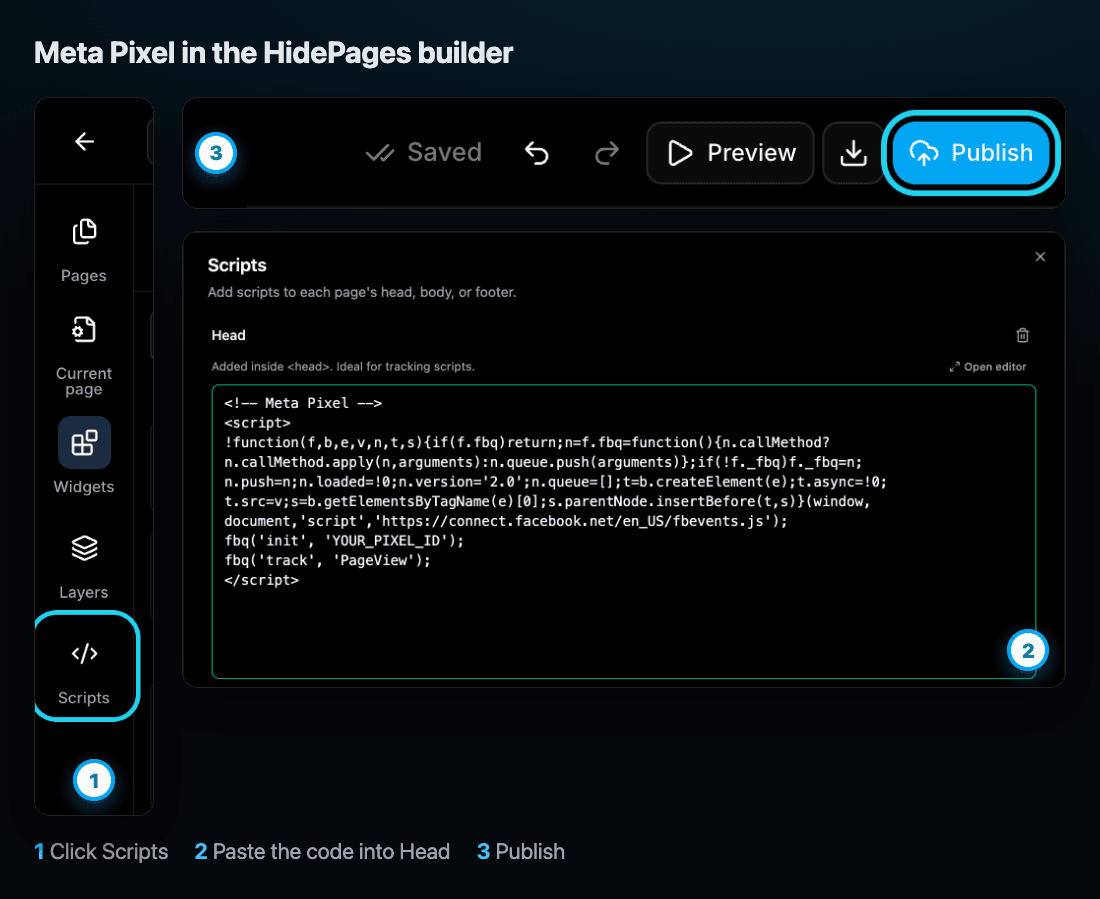
In the builder: in the sidebar, open Pages, find the offer page and click Edit. In the left bar, click Scripts (the </> icon). In the Head field of the Main page tab, paste the meta tag as the first line. The field border turns green when the content is recognized as a script. Click Close, then Publish. Until you publish, the campaign link still serves the previous version.
2. Install the Pixel as usual
After the setting above, install the Meta Pixel normally.
Use the code from Meta Events Manager: open your Pixel → Add events → From the website → Install code manually.
You do not need to change the standard Pixel code because of this setting.
The structure looks like this (replace YOUR_PIXEL_ID with your Pixel id):
<meta name="referrer" content="no-referrer">
<!-- Meta Pixel code -->
<script>
!function(f,b,e,v,n,t,s){if(f.fbq)return;n=f.fbq=function(){n.callMethod?
n.callMethod.apply(n,arguments):n.queue.push(arguments)};if(!f._fbq)f._fbq=n;
n.push=n;n.loaded=!0;n.version='2.0';n.queue=[];t=b.createElement(e);t.async=!0;
t.src=v;s=b.getElementsByTagName(e)[0];s.parentNode.insertBefore(t,s)}(window,
document,'script','https://connect.facebook.net/en_US/fbevents.js');
fbq('init', 'YOUR_PIXEL_ID');
fbq('track', 'PageView');
</script>3. If you use the noscript tag
Meta also ships a fallback that uses an invisible image, for visitors without JavaScript.
In that case, add referrerpolicy="no-referrer" on the element itself:
<img
  height="1"
  width="1"
  style="display:none"
  src="https://www.facebook.com/tr?id=YOUR_PIXEL_ID&ev=PageView&noscript=1"
  referrerpolicy="no-referrer"
/>
Replace YOUR_PIXEL_ID with your Pixel id.
If you already use the noscript snippet from Meta, just add referrerpolicy="no-referrer" to the <img> tag.
In the HidePages builder, that block goes in the Body field (right after <body> opens). The meta tag and the Pixel script stay in Head.
<noscript>
  <img height="1" width="1" style="display:none" referrerpolicy="no-referrer"
    src="https://www.facebook.com/tr?id=YOUR_PIXEL_ID&ev=PageView&noscript=1"/>
</noscript>
If the page is yours (Mirror or Redirect)
The install is the same, in the <head> of your page (plain HTML, WordPress, or another builder). HidePages does not inject the Pixel for you in this case.
- 1In HidePages, open Campaigns and create or edit the campaign.
- 2In the Pages block, on the Black Page, choose Mirror and paste your page URL.
- 3Click Update Campaign.
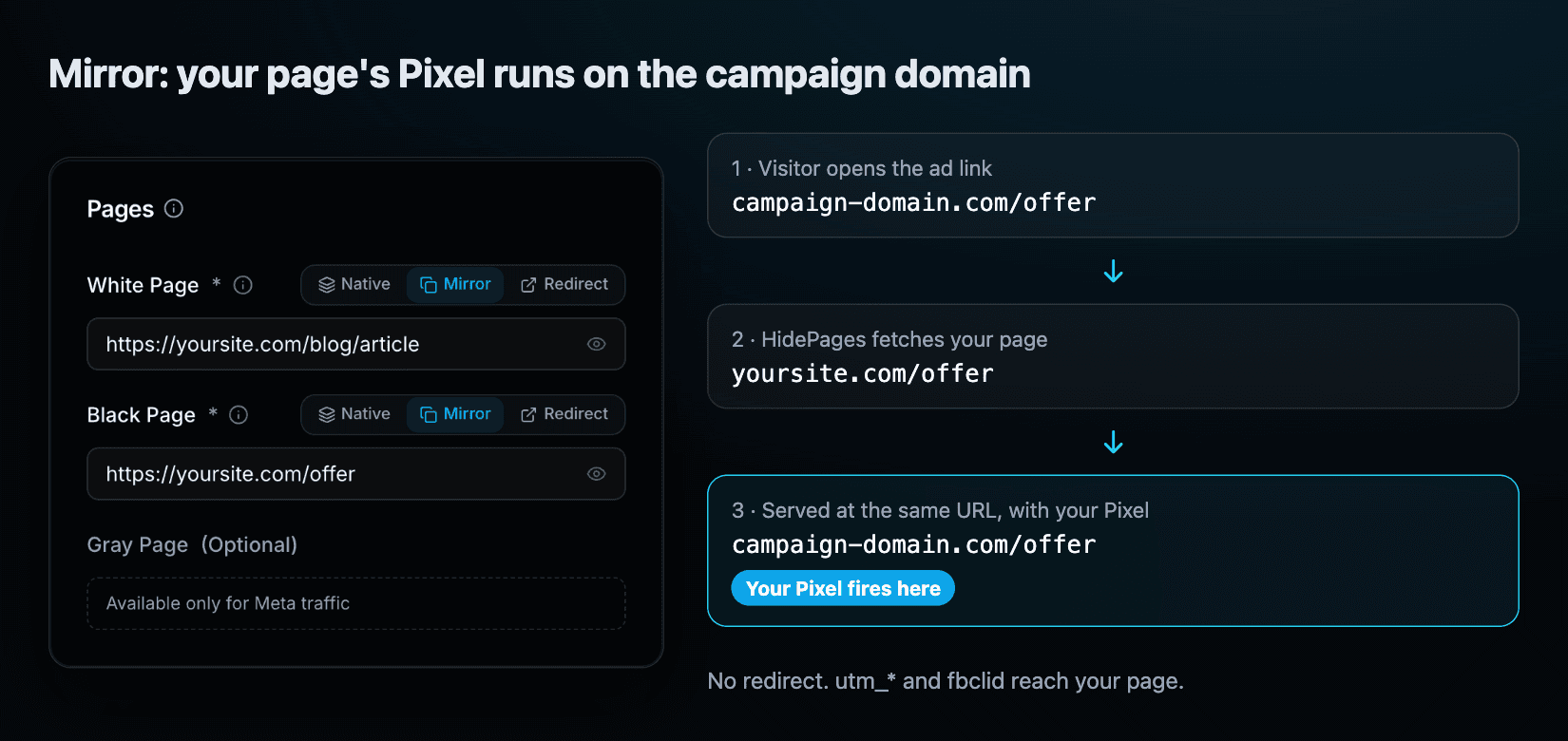
Mirror keeps your page's scripts and serves the content on the campaign domain, with no hop. Redirect sends the visitor to your URL, and the dashboard itself says it does not recommend that mode. If the page is yours, prefer Mirror. The difference is covered in cloaker without a redirect.
How to check that it works
After installing, inspect the request in the browser. Open the full campaign link (the same one as the ad, with the hpid) from a visit the campaign allows through. Without the hpid you see the safe page, and the offer Pixel is not there. See how to use the hpid.
1. Open DevTools
In Chrome, press F12. Open the Network tab and reload the page.
2. Find the Meta requests
In the Network search box, look for facebook.com or /tr.
3. Open a request
Click a Pixel request and open Request Headers. Check the Referer field.
With <meta name="referrer" content="no-referrer">, the offer page URL should not be sent in that field.
How to tell the Pixel is working
Besides the Referer, confirm that events arrive in Meta Events Manager (Test events). The Chrome extension Meta Pixel Helper also shows the Pixel on the page.
You can test, for example:
PageViewViewContentLeadCompleteRegistrationPurchase
The event and the parameters depend on your Pixel and your page. The base code fires only PageView.
Common mistake: setting only the noscript
If you use the Meta JavaScript Pixel, configuring only the noscript image does nothing for real visitors.
Set it on the page:
<meta name="referrer" content="no-referrer">That applies the referrer policy to resources the page loads. referrerpolicy="no-referrer" on the <img> is an extra guard for that one request.
Common mistake: placing the setting after the Pixel
The meta tag has to be at the start of the Head, before the Pixel code.
<meta name="referrer" content="no-referrer">
<!-- Meta Pixel -->
If it comes after the script, the browser may already have fired the Pixel request with the page URL in the Referer.
Other mistakes that show up on HidePages:
- You forgot to publish. The editor saves the draft. The campaign link serves the published version.
- Pixel inside an HTML block on the canvas. The Pixel belongs in Scripts → Head, not in a page element.
- Cloned page. When you clone from a URL, HidePages strips the original page's tracking scripts. Paste your own Pixel afterward.
- Testing without the
hpid. The visit lands on the safe page and it looks like the Pixel disappeared.
Checklist
Before you finish, confirm:
- The
no-referrermeta tag is in the Head. - The meta tag is before the Pixel code.
- The Pixel is installed with your id, and the standard code is unchanged.
- If you use
noscript, the<img>hasreferrerpolicy="no-referrer". - The builder page is published and the campaign is Active.
- Events show up in Events Manager.
- The Pixel request does not send the offer page URL in the
Referer.
Summary
For most cases you only need to add:
<meta name="referrer" content="no-referrer">in the page Head and install the Pixel normally, with the meta tag in front.
If you also use Meta's noscript, add referrerpolicy="no-referrer" to the <img> tag.
HidePages is a page builder with a native traffic filter (Zero-Redirect) for 15+ traffic sources. For the filter itself, start with what a cloaker is and what a white page is.
FAQ
The browser can send the offer page URL in the Referer header when the Meta Pixel fires. Meta reads that referrer and flags the campaign as Misleading Link. The no-referrer meta tag in the Head, before the Pixel, tells the browser not to send that URL.
On a builder page: Pages → Edit → Scripts → Head, first line, then Publish. On your own page in Mirror or Redirect: in the <head>, before the Pixel code.
No. Use the code Events Manager gives you. The only additions are the meta tag in front of it and, if you use noscript, the referrerpolicy="no-referrer" attribute on the image.
No. The noscript image only runs for visitors without JavaScript. Anyone who loads the Pixel script needs the meta tag in the Head.
Yes. Mirror keeps your page's scripts. The meta tag and the Pixel have to be in that page's <head>. The visitor stays on the campaign domain.
Builder + filter in one layer
Protect your offers before the next spy finds them.
Build your pages, set the filter rules and launch — with Zero-Redirect delivery and every request explained in real-time logs.
- Setup in minutes
- Zero-Redirect
- Free assisted migration